FeedCue
In developmentEvery screen you own, on one channel.
FeedCue turns any Apple TV into a managed display. Decide what every screen shows, change it in seconds, and keep it on schedule, from your phone, the web or a touchscreen at the front desk.
Features
What FeedCue does
Everything listed here works in the app today.
Put anything on screen
A display can show live video, your own media, or several things at once.
Live video
Show live NDI feeds in HD or 4K, with sound. A low-bandwidth mode helps on busy networks.
Images and video
Upload once to the content library, then send it to as many displays as you like.
Slideshows
Build a slideshow from images, video or a PDF. Displays showing the same slideshow stay in step.
Streams
Play RTSP, HLS or MP4 streams, such as a security camera or a broadcast feed.
Split layouts
Show two or three sources side by side, or float one in a corner as picture-in-picture.
Celebration slides
Show birthdays and anniversaries from a roster you keep up to date.
Keep it on schedule
Set the routine once. Displays follow it without anyone remembering to switch them.
Scenes
Save what a display shows as a named scene, and switch many displays at once.
Weekly rules
Choose which scene plays on which days and at what times.
Date exceptions
Override a whole day for a holiday or an event, without touching the weekly rules.
Manual override
Take over a display for a special moment. Clear it and the schedule resumes.
Copy to displays
Build a schedule on one display and copy it to the others.
Overlays for the moment
Add information on top of whatever is already playing.
Now Serving
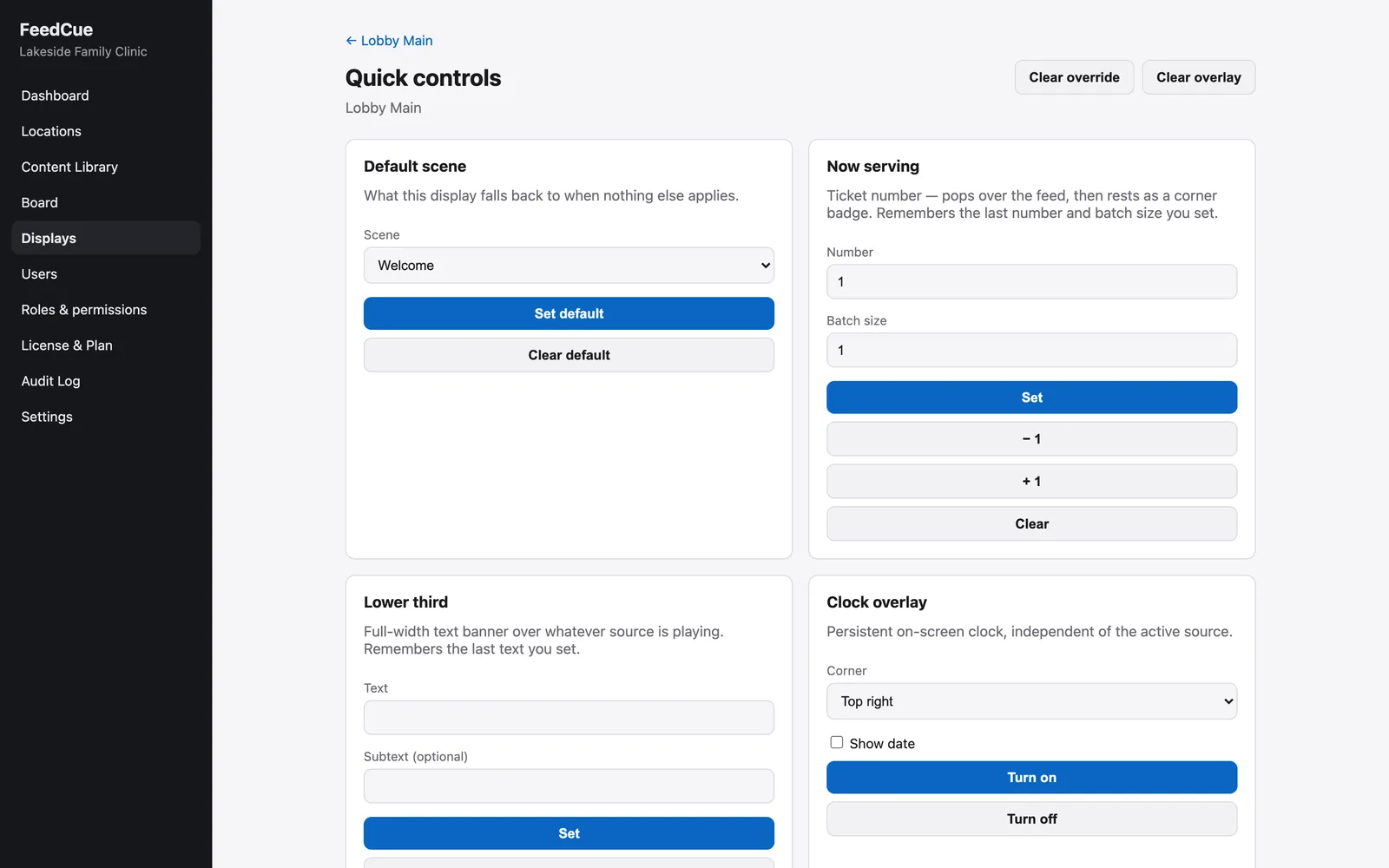
A queue number pops over the picture with a chime, then rests in a corner. Set it, step it or clear it.
Countdown
Count down to an opening, a class change or a start time, as a corner badge or full screen.
Text banner
Run a line of text, with your logo, across the bottom of the picture.
Clock
Keep the time, and the date if you want it, in any corner.
Takeover
Interrupt a display with an image or video, for a set time or until you clear it.
Control it from anywhere
Use whichever screen is closest. They all do the same job.
iPhone, iPad and Mac app
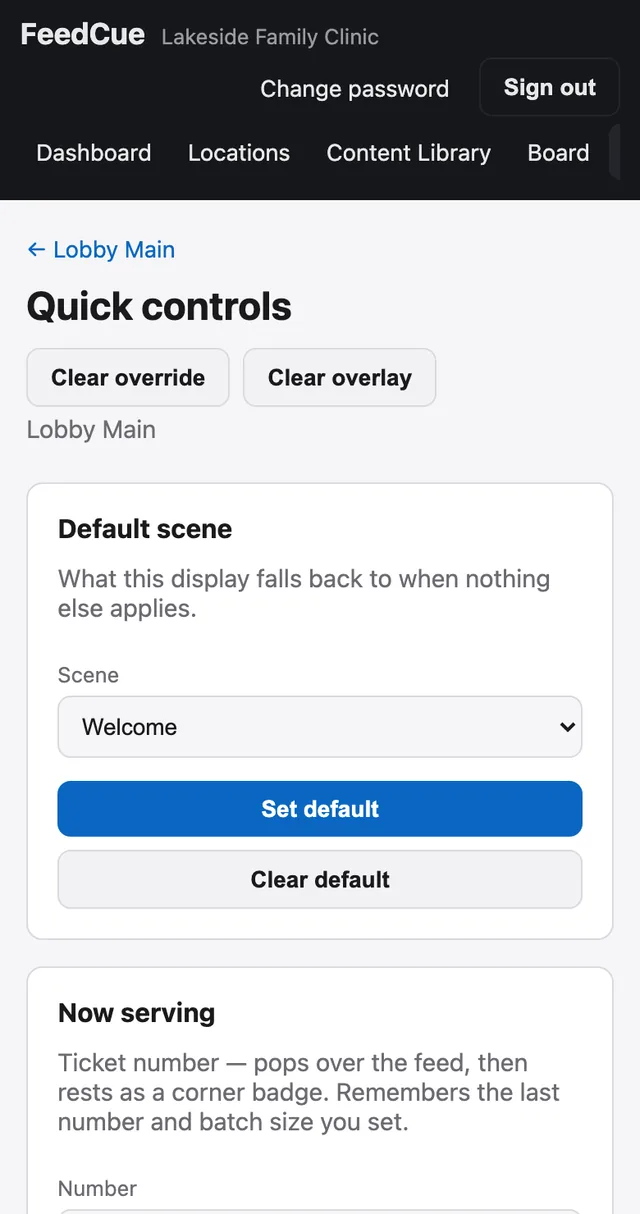
Switch scenes, set overlays and check on displays. Home Screen widgets step the Now Serving number in one tap.
Web console
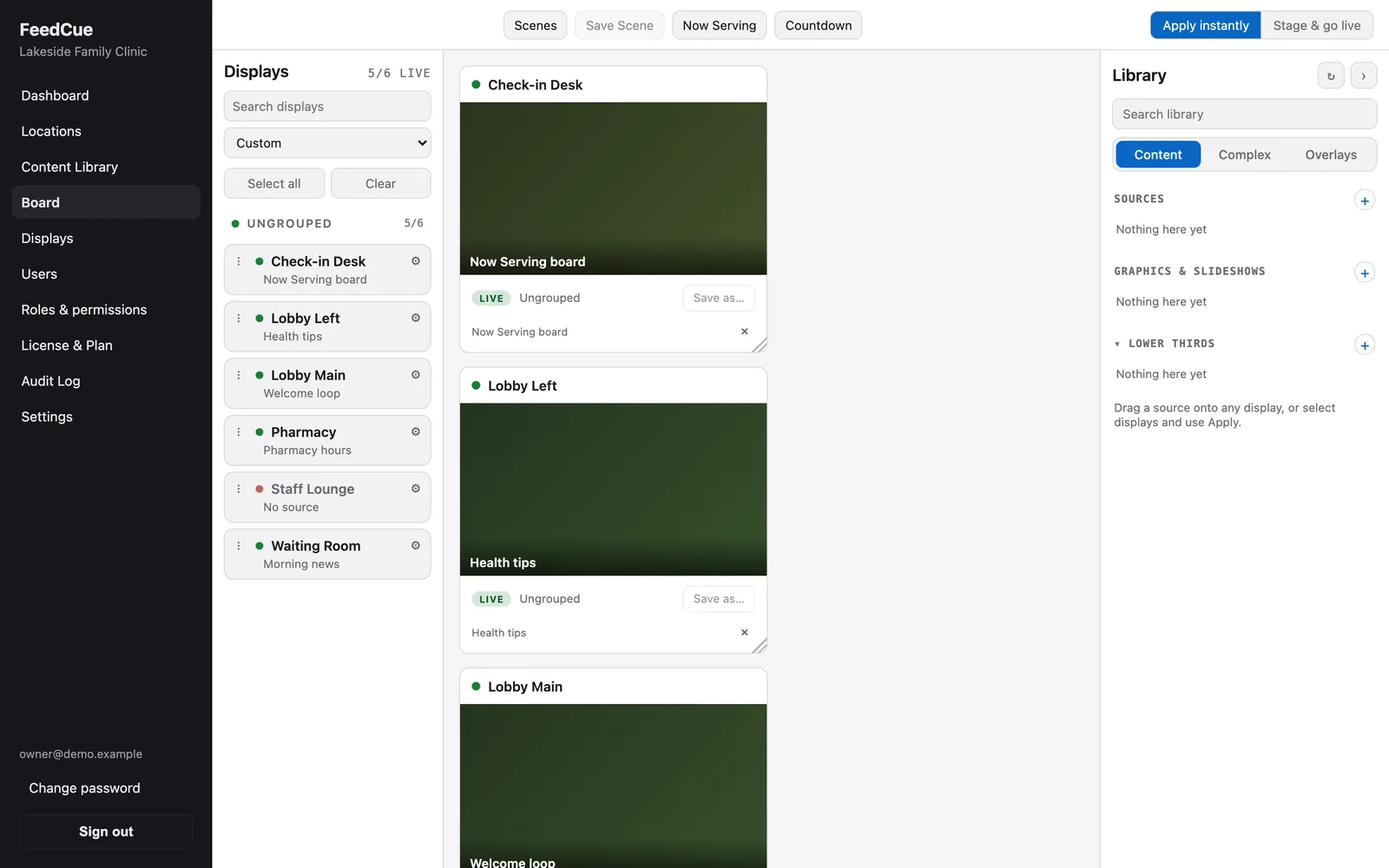
The Board shows every display. Drag content onto one, or stage changes for several and go live together.
Front-desk kiosk
A Raspberry Pi touchscreen gives staff Now Serving, sources and controls without a phone or a login.
Away from the building
Displays connect out to a cloud relay, so you can control them from anywhere without a VPN or open ports.
Camera and screen sharing
Send an iPhone or iPad camera, or a Mac screen, to your displays as a live source.
Built for organizations
One account for the whole organization, with the right access for each person.
Locations
Group displays by location, and move a display when the room changes.
Roles
Owner, Admin, Manager, Operator and Viewer. You decide what each role may do.
Sign-in
Invite people by email. Single sign-on works with identity providers that support OpenID Connect.
Audit log
See who changed what, and when.
Pairing
A new display shows a code. Enter it to add the display, and revoke any device whenever you need to.
Keeps running
A display should never sit on a black screen.
Fallback
If a live feed drops, the display returns to its default scene.
Reconnect
Streams reconnect on their own when the source comes back.
Works without internet
Displays keep playing, and controls on the local network keep working, when the internet is down.
Offline alerts
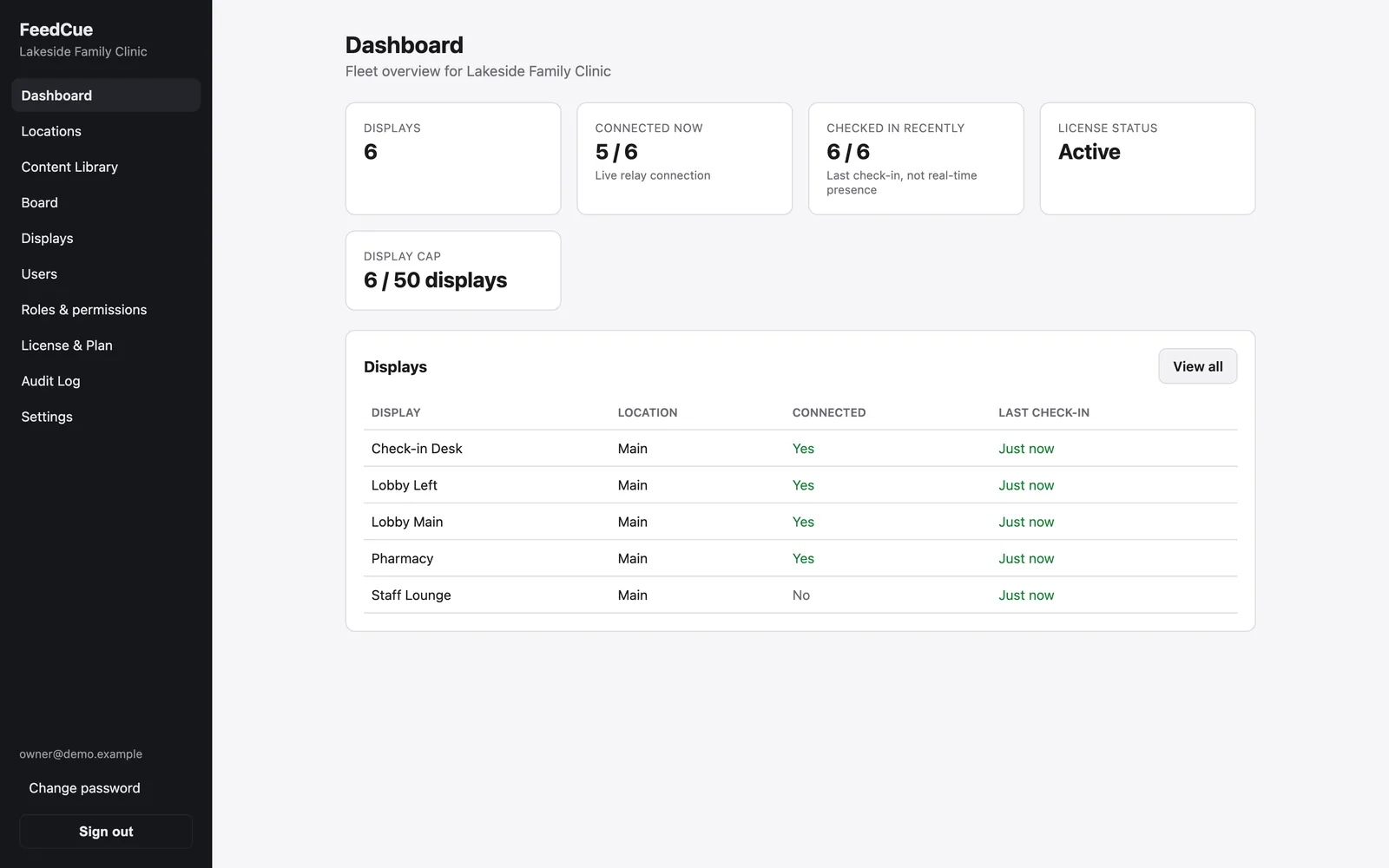
Get a notification and an email when a display stops checking in.
Screens
See it in use
These pictures come from the app itself, running with sample data.
How it works
From setup to everyday use
Plug in an Apple TV
Any screen with an Apple TV becomes a managed display. There is no special hardware to buy.
Pair it
The display shows a code. Enter it in the app or the web console.
Add your content
Point it at live feeds, upload media, and save the combinations you use as scenes.
Set the schedule
Weekly rules cover the routine. Overrides and exceptions cover everything else.
Who it is for
- Waiting rooms: queue numbers, wait-time messages and a calm rotation
- Classrooms and campuses: daily schedules, announcements and countdowns
- Auto shops and service centers: live feeds and promotions on rotation
- Restaurants: menu boards, order-ready numbers and daily specials
- Offices and lobbies: visitor welcome messages and company news
Good to know
- Every display needs its own Apple TV.
- NDI sources must be on the same local network as the displays that show them.
- Apple TV cannot show web pages as a source yet.
- Uploaded files can be up to 50 MB each.
- Previews in the web console are still pictures that refresh, not live video.
- The front-desk kiosk controls every display on its network together, not one at a time.
- We create accounts for you. There is no self-service signup yet.
Want to see FeedCue running?
FeedCue is in development and is not yet on the App Store. Pricing has not been set. Email us for a walkthrough or to ask about early access.
Apple TV, iPhone, iPad, Mac, tvOS, iOS, iPadOS and macOS are trademarks of Apple Inc. NDI is a registered trademark of Vizrt NDI AB. Raspberry Pi is a trademark of Raspberry Pi Ltd. Other names may be trademarks of their owners.